

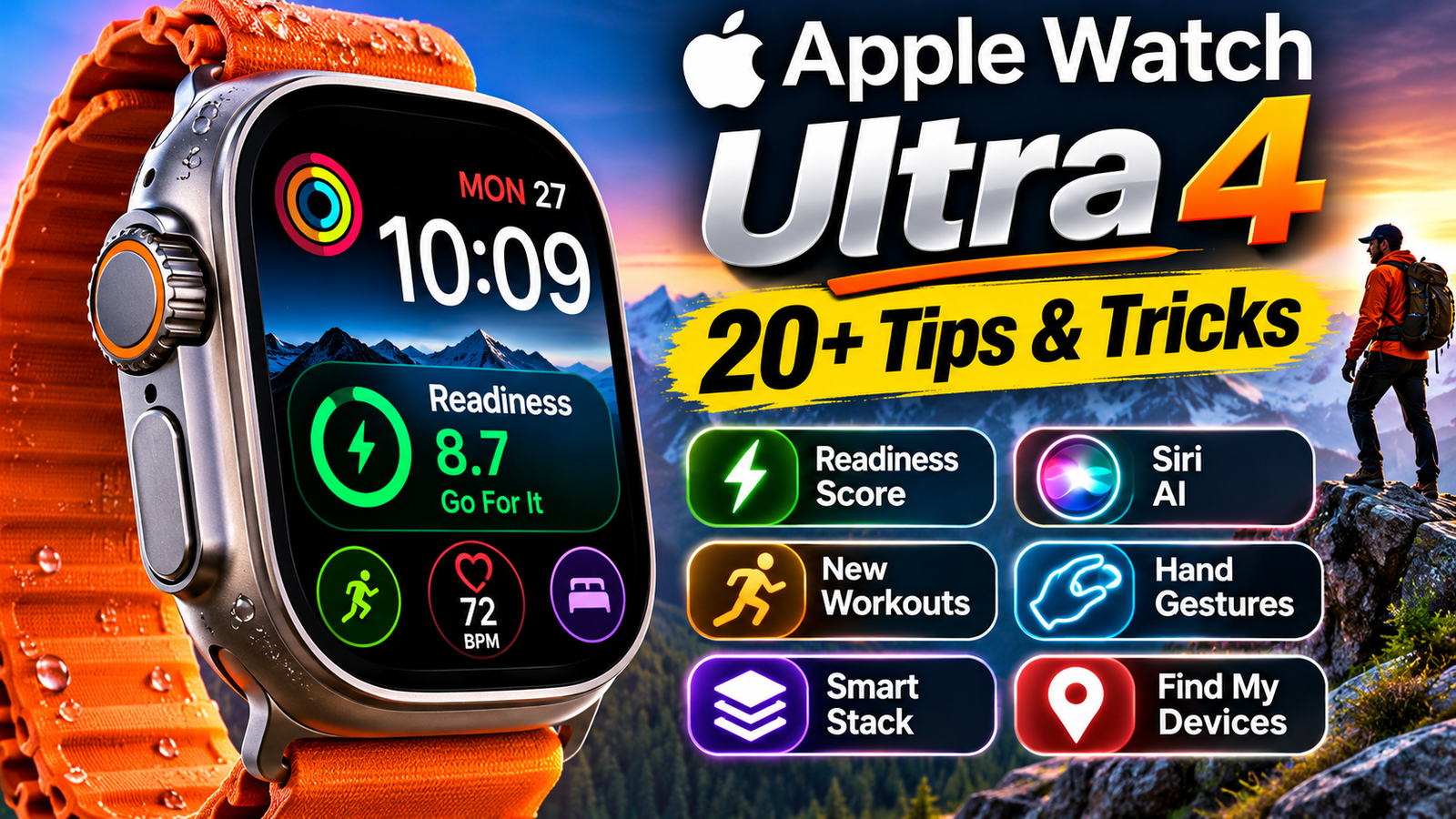
Apple Watch Ultra 4: 20+ Best Tips and Tricks You Should Know: The Apple Watch Ultra 4 is designed for people who want more than just a smartwatch. With advanced health tracking, improved fitness features, intelligent software, and powerful navigation tools, Apple’s latest premium wearable offers plenty of useful features to explore.
However, many of its best capabilities are not immediately obvious. From the new Readiness app and dynamic app menu to advanced gestures, customizable watch faces, and improved workout tracking, there are several ways to get more out of your device.
Whether you use your Apple Watch Ultra 4 for everyday activities, fitness, travel, or outdoor adventures, learning these tips and tricks can help you enjoy a better experience.
Here are more than 20 useful Apple Watch Ultra 4 tips and tricks worth trying.
1. Explore the New Dynamic App Menu
One of the noticeable software improvements in watchOS 27 is the redesigned dynamic app grid.
Instead of displaying every application in the same way, the interface highlights frequently used and recently opened apps. This makes it easier to access applications you use regularly.
The dynamic app grid is particularly useful when you have installed several applications and do not want to spend time searching through them.
You can also open the complete app grid and browse your installed applications using the Digital Crown.
2. Discover the New Siri AI Experience
Siri receives a major upgrade with watchOS 27.
The updated Siri experience is designed to provide more natural interactions and better assistance. It can help users access information, complete supported tasks, and interact with their smartwatch more conveniently.
Apple has also introduced a dedicated Siri experience with improved conversational capabilities.
For users who regularly rely on voice commands, this update makes the Apple Watch more useful without requiring constant interaction with an iPhone.
Some Apple Intelligence capabilities require a compatible iPhone and supported language settings.
3. Use the New Readiness App
The Readiness app is one of the most interesting additions to the Apple Watch Ultra 4.
It provides a daily score between 0 and 10 to help users understand their body’s readiness for physical activity.
The feature considers several health indicators, including recent activity, sleep, and physiological measurements.
It provides four general recommendations:
- Recover: Your body may benefit from additional rest.
- Pace Yourself: Consider taking a balanced approach to your activities.
- Ready: Your current indicators suggest you are prepared for regular activities.
- Go For It: Your readiness indicators suggest a good opportunity for more demanding activity.
The score can change as new information becomes available throughout the day.
It is important to remember that Readiness is a wellness and fitness guidance feature, not a medical diagnosis. It should be used alongside your personal experience and professional medical advice when necessary.
4. Add Readiness to Your Watch Face
Checking your Readiness score becomes easier when you add it to your watch face.
Instead of opening the application every time, you can use a supported complication to display relevant information directly on the screen.
To do this:
- Touch and hold your current watch face.
- Select Edit.
- Navigate to the complications section.
- Find a compatible Readiness complication.
- Select the position where you want it to appear.
- Save your changes.
This makes it easier to check your daily readiness while going about your routine.
5. Customize Your Watch Face with Useful Complications
Complications are small information displays that appear directly on your Apple Watch face.
They allow you to check important information without opening individual applications.
Depending on the watch face and software version, you can add useful complications for:
- Activity tracking
- Heart rate
- Weather
- Calendar
- Battery level
- Compass
- Workout information
- Readiness
Choosing the right complications can make your watch face more practical.
For example, runners may prefer Activity and Workout complications, while people who travel frequently may benefit from Weather and Compass information.
6. Create a Personalized Siri Modular Watch Face
The Siri Modular watch face is another option worth exploring.
It combines customizable watch face elements with dynamically displayed information.
You can personalize available colours, time styles, and complications to create a layout that matches your preferences.
One useful feature is its integration with Smart Stack information. Relevant widgets can appear depending on your activity and the information available on your watch.
This makes the watch face more than just a place to check the time.
7. Try the Modular Ultra Watch Face
If you want a watch face designed around information and functionality, Modular Ultra is worth considering.
It offers a large display area for complications and useful information.
You can configure different sections to show details such as activity progress, weather, battery information, and other supported features.
It is particularly useful for outdoor enthusiasts who want important information available at a glance.
8. Switch Watch Faces Quickly
You do not need to keep the same watch face throughout the day.
Apple Watch allows users to create multiple watch faces for different situations.
For example, you could use one design for workouts, another for office activities, and a simpler one for everyday use.
Create and save your preferred watch faces, then switch between them using the supported watch face navigation controls.
You can also explore the available watch face switching options in Settings.
9. Pin Important Widgets in Smart Stack
Smart Stack helps users access relevant information without opening several applications.
It displays widgets that provide quick access to useful details.
Depending on your software version and available applications, you can organize your Smart Stack by adding, removing, and pinning widgets.
For example, you might want to keep your activity, weather, calendar, or health information easily accessible.
Pinning frequently used widgets helps make the experience more organized.
10. Check Your Health Age on iPhone
Apple’s redesigned Health experience introduces a Longevity section with a Health Age feature.
It uses selected health measurements to provide an indication of how your health metrics compare with those associated with your chronological age.
Depending on available data, it can consider factors such as:
- Resting heart rate
- Sleep information
- Heart rate variability
- Cardiorespiratory fitness
- Other supported health measurements
To explore this feature, open the Health app on your compatible iPhone and look for the Longevity section.
Remember that Health Age is an informational estimate, not a medical assessment of your actual biological age.
11. Enable Music Recognition in Smart Stack
Have you ever heard a song playing nearby and wondered what it was called?
Apple Watch offers music recognition features that make identifying songs easier.
With watchOS 27, Shazam can use on-device audio intelligence to identify music and provide results through supported Smart Stack experiences.
You can also use the Music Recognition application when you want to identify a song manually.
This is especially useful when you are listening to music in a restaurant, shopping centre, or public place.
12. Use the New Single Tap Gesture
One of the useful gesture improvements in watchOS 27 is the single tap gesture.
By bringing your index finger and thumb together once, you can interact with supported Smart Stack widgets.
This is helpful when your other hand is occupied.
For example, you can use the gesture to select a widget or interact with supported controls.
It adds another convenient way to operate the smartwatch without directly touching its display.
13. Master the Double Tap Gesture
The Double Tap gesture is another useful feature.
Simply tap your index finger and thumb together twice to interact with supported applications and notifications.
Depending on the current screen, it can help you perform actions such as answering calls, controlling media playback, and interacting with notifications.
This is particularly convenient when carrying something or when using your other hand is difficult.
14. Use Wrist Flick to Dismiss Notifications
Wrist Flick is a useful gesture for managing notifications.
Instead of touching the screen, you can quickly turn your wrist over and back to dismiss supported notifications and alerts.
It can also help silence incoming calls and stop timers.
You can manage gesture settings through the Settings app on your Apple Watch.
These features make everyday interactions more convenient.
15. Remember Where You Parked Your Car
Finding your parked car can sometimes be frustrating, especially in large parking areas.
Apple Maps and the iPhone can help you remember your parked vehicle’s location.
To use this feature:
- Open Settings on your iPhone.
- Navigate to Apps and Maps.
- Find the Show Parked Location option.
- Enable the setting.
- Make sure your iPhone is connected to your vehicle through supported Bluetooth or CarPlay connections.
When your iPhone disconnects from the vehicle, it can save the parked location.
You can then access the saved location through supported Maps or Smart Stack experiences on your Apple Watch.
This is especially helpful when travelling or parking in unfamiliar places.
16. Use Apple Wallet on Your Wrist
Apple Wallet makes it easier to access supported payment cards, tickets, passes, and loyalty cards.
Once you add a compatible pass to your iPhone and make it available on your Apple Watch, you can access it directly from your wrist.
For example, you might use supported gym membership cards, travel passes, or loyalty cards.
Double-click the side button to open Wallet and select the pass you want to use.
Availability depends on the card provider, region, and supported Wallet functionality.
17. Extend Battery Life During Workouts
Battery performance is important when using an Apple Watch for long outdoor activities.
The Apple Watch Ultra 4 introduces Max Extended Workout tracking, which provides up to 45 hours of continuous workout tracking under supported conditions.
To access this option:
- Open the Workout app.
- Select a supported outdoor workout.
- Open the available workout settings.
- Find the extended workout option.
- Select the appropriate battery-saving mode.
The actual battery life depends on workout type, GPS usage, connectivity, settings, and other conditions.
18. Use Find My to Locate Your Apple Devices
Losing your iPhone, AirPods, or another Apple device can be frustrating.
The Find My application helps you locate supported devices connected to your Apple Account.
On your Apple Watch, open Find My and select the device you want to locate.
Depending on device compatibility and location services, you may be able to view its location or play a sound.
This is particularly useful when your iPhone is somewhere nearby but you cannot remember where you placed it.
19. Find Your iPhone Using Control Center
If you cannot find your iPhone at home or in the office, your Apple Watch can help.
Open Control Center and select the Ping iPhone control.
Your iPhone will play a sound to help you locate it.
On supported models, you can also use the additional flashlight indication to make finding your device easier.
It is one of the simplest features, but it can save considerable time.
20. Locate AirTags from Your Apple Watch
AirTags are useful for tracking personal belongings such as bags, keys, and luggage.
With compatible Find My functionality, you can use your Apple Watch to help locate supported AirTags.
You can also add supported controls to Control Center for quicker access.
This is particularly useful when travelling or trying to locate frequently misplaced belongings.
21. Find Your Apple Watch Using Your iPhone
The Find My application also works in the opposite direction.
If you misplace your Apple Watch, open Find My on your iPhone and select your watch from the Devices section.
Depending on its connection status, you can use available location and sound features to help find it.
This is particularly helpful when your watch is somewhere inside your house or office.
Final Thoughts
The Apple Watch Ultra 4 offers much more than fitness tracking and notification management.
Its new Readiness app, improved Smart Stack, dynamic app grid, Siri AI, advanced gestures, and extended workout capabilities make it a powerful wearable for everyday use.
The best way to enjoy these features is to customize the watch according to your daily routine.
Whether you are a fitness enthusiast, traveller, professional, or someone who simply enjoys smart technology, these tips can help you get more value from your Apple Watch Ultra 4.
Remember that some features require watchOS 27, a compatible iPhone, supported languages, and regional availability. Check Apple’s official documentation before changing settings or relying on a particular feature.
Read More: Samsung Galaxy S26 Ultra vs iPhone 18 Pro Max: Which Flagship Smartphone Is Better?
1 thought on “Apple Watch Ultra 4: 20+ Best Tips and Tricks You Should Know”
Comments are closed.