

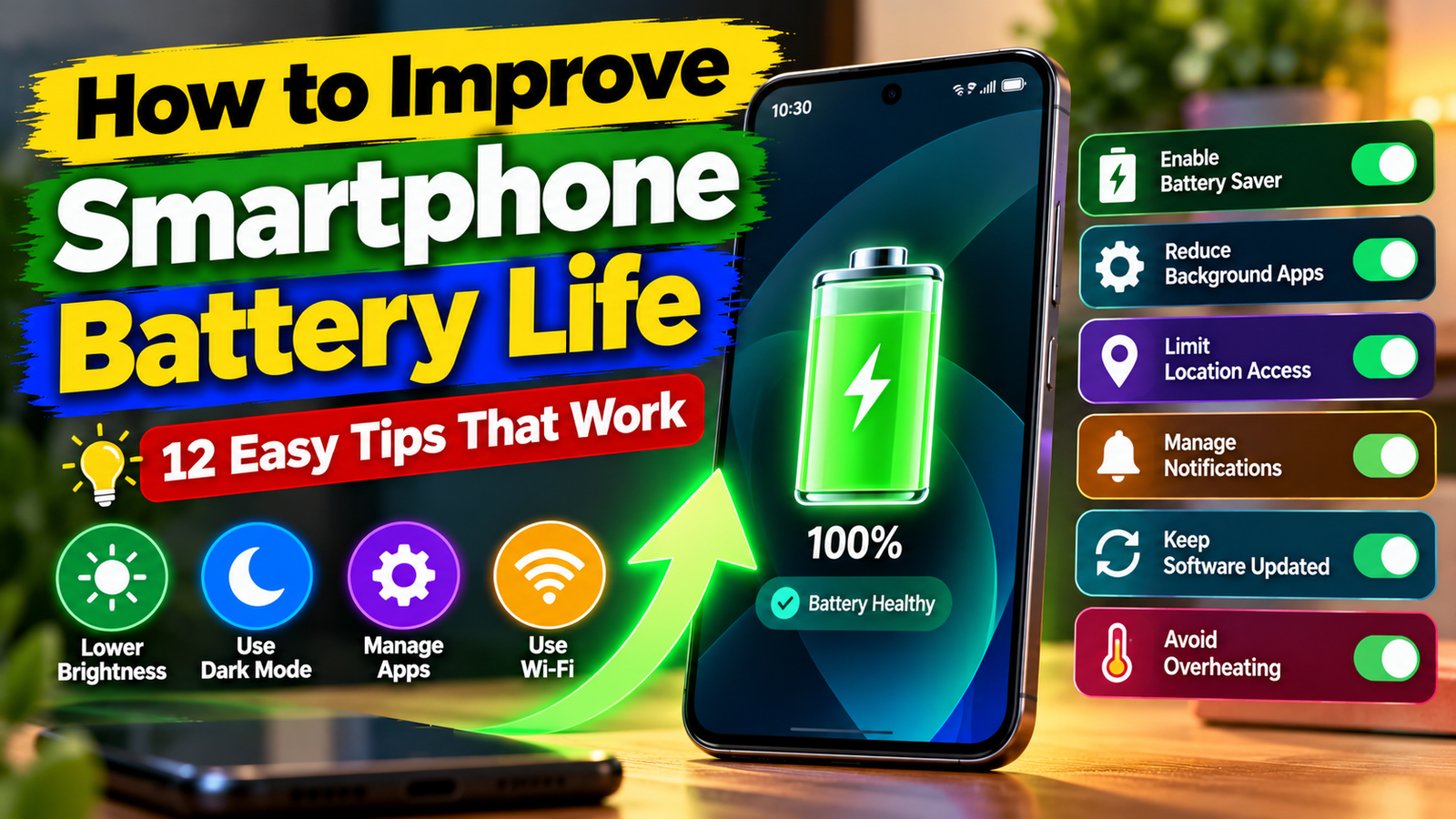
Smartphones have become an essential part of everyday life. We use them for communication, social media, online payments, photography, entertainment, navigation and work. However, one common problem many smartphone users experience is battery drain.
You may start your day with a fully charged phone, only to find that the battery percentage drops significantly before the evening. This can be frustrating, especially when you need your smartphone for important activities.
The good news is that you can improve your smartphone’s battery life by adjusting a few settings and developing better usage habits. You do not always need a new phone or a battery replacement to reduce unnecessary power consumption.
In this guide, we explain 12 practical ways to improve smartphone battery life on Android and iPhone, reduce battery drain and maintain battery health over time.
1. Reduce Your Screen Brightness
Your smartphone display is one of the components that can consume a significant amount of battery power, particularly when brightness is high.
Keeping your screen at maximum brightness throughout the day may cause faster battery drain. Reducing brightness to a comfortable level can help your phone use less energy.
You can adjust brightness manually through the quick settings panel on Android or Control Center on iPhone.
You can also enable automatic or adaptive brightness, which adjusts screen brightness according to surrounding lighting conditions on supported devices.
Tip: Avoid keeping your display unnecessarily bright when you are indoors or using your phone at night.
2. Reduce Screen Timeout
Screen timeout determines how long your smartphone display stays on after you stop interacting with it.
If your screen remains active for several minutes after you put your phone down, it continues consuming power unnecessarily.
On Android, look for the Screen Timeout or Screen Sleep option under Display settings. On iPhone, open Settings, select Display & Brightness and check Auto-Lock.
Choose a shorter timeout that suits your usage habits.
For example, setting the screen to turn off after 30 seconds or one minute can reduce unnecessary display activity.
This is a simple adjustment that can make a difference throughout the day.
3. Enable Battery Saver or Low Power Mode
Most modern smartphones include a built-in battery-saving feature.
Android devices commonly offer Battery Saver or Power Saving Mode, while iPhones include Low Power Mode.
These features help reduce energy consumption by limiting certain background activities and system operations.
Depending on the device, battery-saving mode may:
- Reduce background app activity.
- Limit automatic synchronization.
- Reduce visual effects.
- Restrict certain background processes.
- Adjust performance or refresh behaviour.
You can enable these features manually when your battery percentage becomes low or configure automatic activation where supported.
Tip: Battery Saver is particularly useful when you are travelling or cannot access a charger for several hours.
4. Identify Apps That Consume Too Much Battery
Some applications use more battery power than others. Social media, video streaming, gaming, navigation and camera applications can consume considerable energy depending on how frequently and how long you use them.
Both Android and iPhone provide battery usage information that helps you identify applications responsible for significant power consumption.
On Android, check Settings and look for Battery Usage or App Battery Usage. The exact menu depends on the manufacturer.
On iPhone, open Settings and select Battery to review app activity and battery usage.
If an application consumes unusually high power in the background, review its permissions and background activity settings.
You do not necessarily need to uninstall every battery-consuming application. First, understand why it is using power and adjust its settings if appropriate.
5. Turn Off Unnecessary Background Activity
Some apps continue performing tasks even when you are not actively using them.
They may refresh content, synchronize information, check for updates or access location services in the background.
Although these features can be useful, unnecessary background activity may contribute to battery drain.
On Android, review background battery usage and restrict apps that do not need to run continuously.
On iPhone, you can review Background App Refresh under Settings and General.
Keep background activity enabled for applications that genuinely need it, such as essential communication or navigation services.
The goal is not to disable everything but to prevent unnecessary applications from consuming resources.
6. Turn Off Location Services When Not Needed
Location services allow applications to determine your approximate or precise location using available technologies.
Navigation, ride-booking, weather and map applications may need location access to provide their services. However, some applications may request location access even when it is not essential.
Review your location permissions and allow access only when necessary.
On Android, check Location permissions through Privacy or Permission Manager settings.
On iPhone, open Settings, select Privacy & Security and choose Location Services.
Where available, select options such as While Using the App instead of allowing continuous background access.
Remember that disabling location services completely may affect useful features such as navigation, location sharing and emergency-related services.
7. Use Wi-Fi When It Is Available
Your smartphone uses wireless connections to access the internet, and network conditions can influence battery consumption.
When mobile network coverage is weak, your phone may use additional power trying to maintain a connection.
If you have access to a reliable Wi-Fi network, using Wi-Fi instead of mobile data may help reduce battery consumption in some situations.
However, the actual difference depends on your device, network conditions and usage.
If you are travelling through an area with very poor mobile coverage and do not need connectivity, Airplane Mode can help reduce unnecessary network activity.
Keep in mind that Airplane Mode disables cellular connections, so calls, messages and mobile data may not work until you turn them back on.
8. Reduce Notifications and Unnecessary Alerts
Every notification can cause your smartphone to perform background activity and may wake the display.
Receiving frequent notifications from shopping applications, games, social media platforms and promotional services can contribute to unnecessary activity.
Review your notification settings and disable alerts from applications that are not important.
You can usually manage notifications individually through your phone’s Settings menu.
Keep essential notifications enabled for communication, security and other important services.
Reducing unnecessary alerts can also help improve concentration and reduce interruptions throughout the day.
9. Avoid Excessive Heat
Temperature plays an important role in smartphone battery performance and long-term battery health.
Excessive heat can accelerate battery ageing and may temporarily affect performance. Smartphones can become warm during demanding activities such as gaming, video recording, fast charging or using navigation for extended periods.
To protect your battery:
- Avoid leaving your phone in direct sunlight.
- Do not keep it inside a hot vehicle.
- Avoid covering the device while charging if it causes overheating.
- Use compatible chargers and cables.
- Stop demanding activities if the device becomes unusually hot.
If your phone repeatedly overheats during normal usage, check for software issues or contact an authorized service centre.
Keeping your smartphone within its recommended operating temperature range is an important part of battery care.
10. Use Dark Mode When Appropriate
Dark Mode changes the appearance of supported applications and system interfaces by using darker backgrounds.
On smartphones with OLED or AMOLED displays, dark pixels can use less power than bright pixels. Therefore, Dark Mode may help reduce display-related energy consumption, depending on how you use your device.
You can usually enable Dark Mode through Display settings.
However, the battery-saving benefit may be smaller on LCD displays because their backlighting works differently.
Dark Mode is also a personal preference. Some users find it more comfortable in low-light environments, while others prefer a light interface.
11. Keep Your Smartphone Software Updated
Software updates can introduce security improvements, bug fixes, compatibility changes and performance optimizations.
Sometimes, unusual battery drain is caused by software problems or applications that are not functioning correctly.
Check your phone’s software update settings regularly and install official updates when appropriate.
Also update applications through the Google Play Store or Apple App Store.
However, do not assume every update will automatically improve battery life. Some updates may temporarily increase battery activity while the phone completes background tasks such as indexing and synchronization.
If unusual battery drain continues after an update, check battery usage statistics and investigate individual applications.
12. Follow Better Charging Habits
Charging habits can influence long-term battery health.
Most modern smartphones use lithium-ion or lithium-polymer batteries. These batteries gradually lose their ability to hold a charge as they age and go through charging cycles.
You do not need to follow complicated charging rules, but a few habits can help:
- Use a compatible charger from a reliable manufacturer.
- Avoid exposing your phone to excessive heat while charging.
- Enable optimized or adaptive charging if your phone supports it.
- Avoid regularly allowing the battery to remain completely empty for long periods.
- Use battery health information to understand the condition of your device.
Many modern phones include charging optimization features designed to manage charging behaviour and reduce unnecessary battery ageing.
There is no need to panic if you occasionally charge your phone to 100%. Focus on avoiding excessive heat and following the manufacturer’s recommendations.
Android vs iPhone: Battery-Saving Features
Both Android and iPhone provide useful tools for managing battery consumption, although the settings and feature names may differ.
| Feature | Android | iPhone |
|---|---|---|
| Battery-saving mode | Battery Saver | Low Power Mode |
| Battery usage details | Battery Usage | Battery settings |
| Background activity | App battery settings | Background App Refresh |
| Screen brightness | Adaptive Brightness | Auto-Brightness |
| Dark interface | Dark Theme | Dark Mode |
| Charging optimization | Available on supported models | Optimized Battery Charging |
The exact availability of these features depends on your device model and software version.
How to Know When Your Smartphone Battery Needs Replacement
Sometimes, changing settings is not enough because the battery itself may have deteriorated.
Common warning signs include:
- Battery percentage dropping unusually quickly.
- Unexpected shutdowns even when the battery shows remaining charge.
- Significantly reduced battery runtime compared with previous usage.
- Battery swelling or physical deformation.
- Charging problems that continue after checking the charger and cable.
On supported iPhones, you can check Battery Health under Settings and Battery.
Android manufacturers offer different battery diagnostics and health information depending on the model.
If you notice battery swelling, stop using and charging the device and arrange professional service. Never attempt to puncture or press a swollen battery.
A battery replacement may be worth considering when the battery has significantly deteriorated, but use an authorized or reputable repair service.
Final Verdict
Improving smartphone battery life does not always require purchasing a new device. Small changes to display brightness, screen timeout, background activity, location permissions and notifications can help reduce unnecessary battery consumption.
Both Android and iPhone provide built-in battery management features that allow users to understand which applications and activities use the most power.
Remember that battery life depends on several factors, including device age, battery condition, network coverage, display settings and daily usage.
Start by checking your battery usage statistics, identify the biggest sources of power consumption and adjust the settings that matter most.
With sensible charging habits and regular maintenance, you can make better use of your smartphone’s battery and enjoy a more reliable everyday experience.
Read More: Android vs iPhone: Which Is Better for You? A Complete Comparison
1 thought on “How to Improve Smartphone Battery Life: 12 Easy Tips That Work”
Comments are closed.