

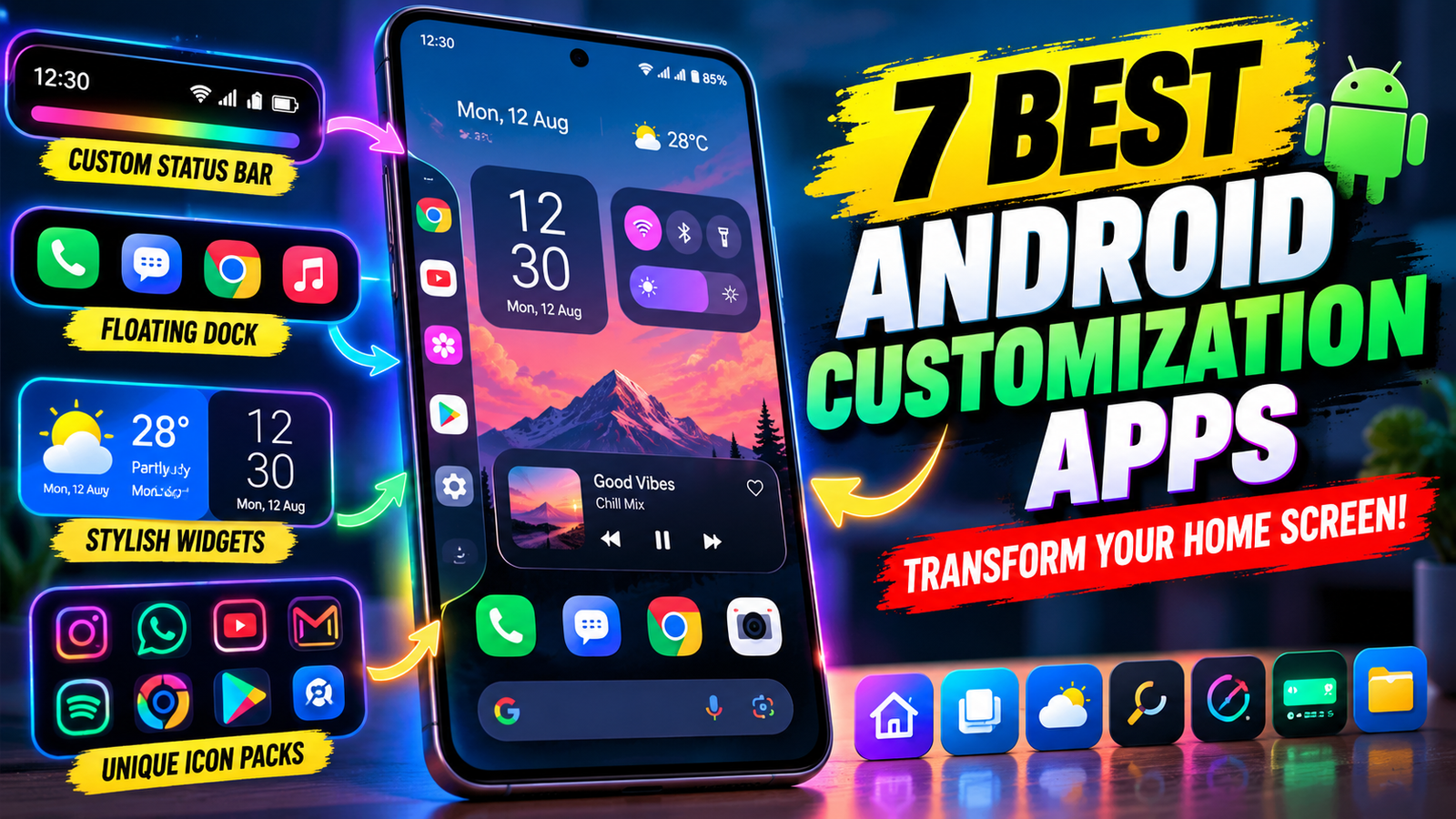
Your Android phone can look and feel completely different with the right customization apps. Instead of sticking with the same default icons, widgets, and home screen layout, you can create a setup that matches your personality and makes everyday tasks easier.
Android already offers plenty of personalization options, but third-party apps can take things further. You can experiment with alternative launchers, organize applications into nested folders, add floating shortcuts, customize your status bar, and give your icons a coordinated appearance.
Some apps focus on appearance, while others improve convenience and productivity. The right combination can help you build a home screen that looks cleaner and makes your favorite features easier to access.
Here are seven Android customization apps worth exploring if you want to refresh your smartphone experience.
1. Dual Launcher: Try a Different Home Screen Layout
If you enjoy experimenting with unusual Android interfaces, Dual Launcher offers an alternative to the traditional home screen layout.
The app is designed to provide a distinctive launcher experience with features such as a persistent dock, customizable home screen pages, and flexible widget placement. Depending on the version and device, you may also find options for organizing applications, creating folders, and adjusting the overall appearance.
You can experiment with different wallpapers, change icon sizes, and arrange widgets to create a layout that suits your preferences.
One possible advantage of trying an alternative launcher is that it lets you change the appearance of your phone without replacing the device itself. You can explore a different interface while keeping your existing Android phone.
However, third-party launchers do not necessarily reproduce every feature of another operating system. Some layouts or functions may also behave differently depending on the Android version and device manufacturer.
Best for: Users who want to experiment with a different home screen design.
Before installing Dual Launcher, check its current availability, developer information, reviews, and compatibility with your phone.
2. Floating Dock Taskbar: Keep Your Favorite Tools Within Reach
Switching between applications repeatedly can become inconvenient, particularly when you are using a large smartphone. A floating dock or taskbar can help by keeping frequently used shortcuts accessible.
Floating Dock Taskbar is intended for users who want a more convenient way to reach their favorite applications and controls. Depending on the available features, you may be able to customize the dock’s position, appearance, transparency, and size.
Imagine reading an article while needing to open another application or quickly access a frequently used tool. A floating shortcut panel can reduce the number of steps required to switch tasks.
Some versions of this type of utility may offer additional controls for brightness, volume, music, notes, or clipboard content. Check the specific app listing to determine which features are actually supported.
The main benefit is convenience rather than visual customization alone. A well-organized dock can help you access important applications without returning to the home screen every time.
Keep in mind that floating interfaces may require special permissions, and some devices may restrict their operation in the background. Review permissions carefully before enabling them.
Best for: Users who want quick shortcuts and easier one-handed navigation.
3. Galaxy Widgets 1 UI: Give Your Home Screen a Fresh Look
Widgets can make an Android home screen more informative and visually appealing. Instead of opening separate applications to check basic information, you can display selected details directly on your home screen.
Galaxy Widgets 1 UI is presented as a widget customization option for people who like the clean appearance associated with Samsung’s One UI design.
Depending on the available widget collection, you may find designs for clocks, weather information, calendars, battery levels, notes, music controls, and other everyday functions.
For example, a weather widget can help you check conditions before leaving home, while a calendar widget can display upcoming appointments. A battery widget may also make it easier to monitor your device’s charge.
Matching widget colors with your wallpaper can create a more consistent appearance. You could choose a minimalist background, a simple clock, and a few carefully arranged information panels rather than filling every available space with icons.
The number and style of available widgets can vary by app version. Compatibility with different Android devices should also be checked before installation.
Avoid adding too many widgets, since they can make the home screen crowded or affect battery usage depending on how frequently they refresh.
Best for: Users who want an information-rich home screen with a coordinated design.
4. Swipe Launcher: Find Applications More Quickly
A launcher can change how you access applications, and gesture-based navigation is particularly useful on phones with large displays.
Swipe Launcher focuses on making app access more convenient. Depending on its implementation, it may support searching for applications through typing, gestures, or voice input.
Imagine needing to open Maps while preparing to leave home. Searching directly for the application can be quicker than moving between several home screen pages.
Some app-finding tools also adapt their suggestions based on frequently used applications. If supported, this can reduce the time spent searching for the same apps repeatedly.
A simple interface can be particularly useful for people who prefer functionality over elaborate home screen designs. Rather than changing every icon and widget, you can focus on making navigation faster.
However, claims about offline operation, tracking, or privacy should be confirmed through the developer’s current privacy policy and app documentation. Voice features may also require microphone permission, depending on how they work.
Best for: Users who prioritize fast app searching and convenient navigation.
5. Kylus Duo Tone Icon Pack: Create a Consistent Visual Style
Changing application icons is one of the easiest ways to personalize an Android phone.
Kylus Duo Tone is described as an icon pack featuring colorful, outlined designs intended to give the home screen a coordinated appearance. The original description also mentions wallpapers and KWGT widgets as part of its customization offering; confirm the current contents before installing.
A matching icon pack can make a significant difference when paired with a suitable wallpaper and a simple clock widget.
For example, you could choose a dark background, apply colorful icons, and keep only your most frequently used applications on the main screen. The result can look more organized than a mixture of unrelated icon styles.
Icon packs usually require a compatible third-party launcher. Some manufacturers’ default launchers may not support every icon pack or may require a different setup method.
Not every application is guaranteed to have a custom icon, so unsupported icons may continue using their original appearance.
Best for: Users who want a coordinated home screen with distinctive icons and matching visuals.
6. Super Status Bar: Customize the Top of Your Screen
The Android status bar normally displays information such as the time, battery level, network connection, and notifications. Customization tools can provide additional ways to interact with this area.
Super Status Bar is designed to expand status bar personalization through features such as gesture controls, visual adjustments, and additional indicators, depending on the version and Android device.
For example, a supported gesture might let you adjust volume or brightness without opening the full settings menu. Other available options may include battery indicators or alternative notification presentations.
These small changes can make everyday interactions more convenient, especially if you frequently adjust settings while watching videos, listening to music, or using other applications.
Some features may depend on Android permissions or accessibility services. These permissions can provide powerful capabilities, so review the requested access and enable only what you understand and need.
Also remember that Android updates and manufacturer restrictions can affect whether certain features work as expected.
Best for: Users who want more control over status bar appearance and shortcuts.
7. Folder in Folder: Organize Applications More Effectively
If your phone contains dozens of applications, finding the right one can become frustrating. Creating folders is a familiar solution, but nested folders can provide another level of organization when supported by the app.
Folder in Folder is designed to help users arrange applications into more detailed groups. Depending on the current version, you may be able to create folders within folders and place folder widgets on the home screen.
For example, you could create a main folder called Daily Life and organize its contents into smaller groups:
- Banking and payments
- Shopping and delivery
- Travel and navigation
- Social media and messaging
This structure can reduce clutter while keeping related applications together.
Folder widgets may also provide quicker access to grouped applications without requiring you to navigate through multiple home screen pages.
The main disadvantage is that excessive organization can make apps harder to find. Start with a few practical categories and add subfolders only when they genuinely improve navigation.
Best for: Users with many installed applications who want a cleaner home screen.
How to Choose the Right Android Customization App
You do not need to install all seven apps to improve your smartphone experience. Start by identifying what you want to change.
If appearance is your priority, explore launchers, icon packs, and widgets. If convenience matters more, consider a floating dock or an app-search tool. If your screen is cluttered, a folder-management utility may be more useful than another visual theme.
Before installing any customization app, consider these points:
Check compatibility: Confirm that the app supports your Android version and device.
Review permissions: Be cautious when an app requests access unrelated to its advertised purpose.
Read recent reviews: Look for reports about crashes, advertisements, battery consumption, and compatibility.
Protect your privacy: Read the developer’s privacy policy, especially when an app requests accessibility, microphone, or other sensitive permissions.
Avoid unnecessary clutter: Installing too many customization tools can make your phone harder to manage rather than easier.
Frequently Asked Questions
Do Android customization apps require root access?
Many launchers, icon packs, and widget applications work without root access. However, certain advanced modifications may require additional permissions or device-specific configuration.
Can customization apps slow down my phone?
Some apps may consume extra memory, battery power, or background resources. The effect depends on the app, its settings, your device, and how frequently its features update.
Are Android customization apps safe?
Safety depends on the developer, application, permissions, and distribution source. Prefer verified developers and official app stores, and review permissions before granting access.
Can I change my Android icons without changing my phone?
Yes. A compatible launcher and icon pack can change the appearance of many app icons without requiring a new smartphone. Support varies by device and launcher.
Final Thoughts
Android customization is about more than making your phone look attractive. The right combination of widgets, shortcuts, launchers, and icon packs can also make everyday tasks more convenient.
Dual Launcher, Floating Dock Taskbar, Galaxy Widgets 1 UI, Swipe Launcher, Kylus Duo Tone, Super Status Bar, and Folder in Folder each offer a different approach to personalizing your device, according to the features described for these apps.
Before installing any of them, verify the current app listing, supported features, permissions, and compatibility. Availability and functionality can change over time.
Start with one app that solves a real problem, customize your home screen gradually, and keep the layout simple enough to use comfortably every day.
1 thought on “7 Best Android Customization Apps to Transform Your Home Screen”
Comments are closed.