

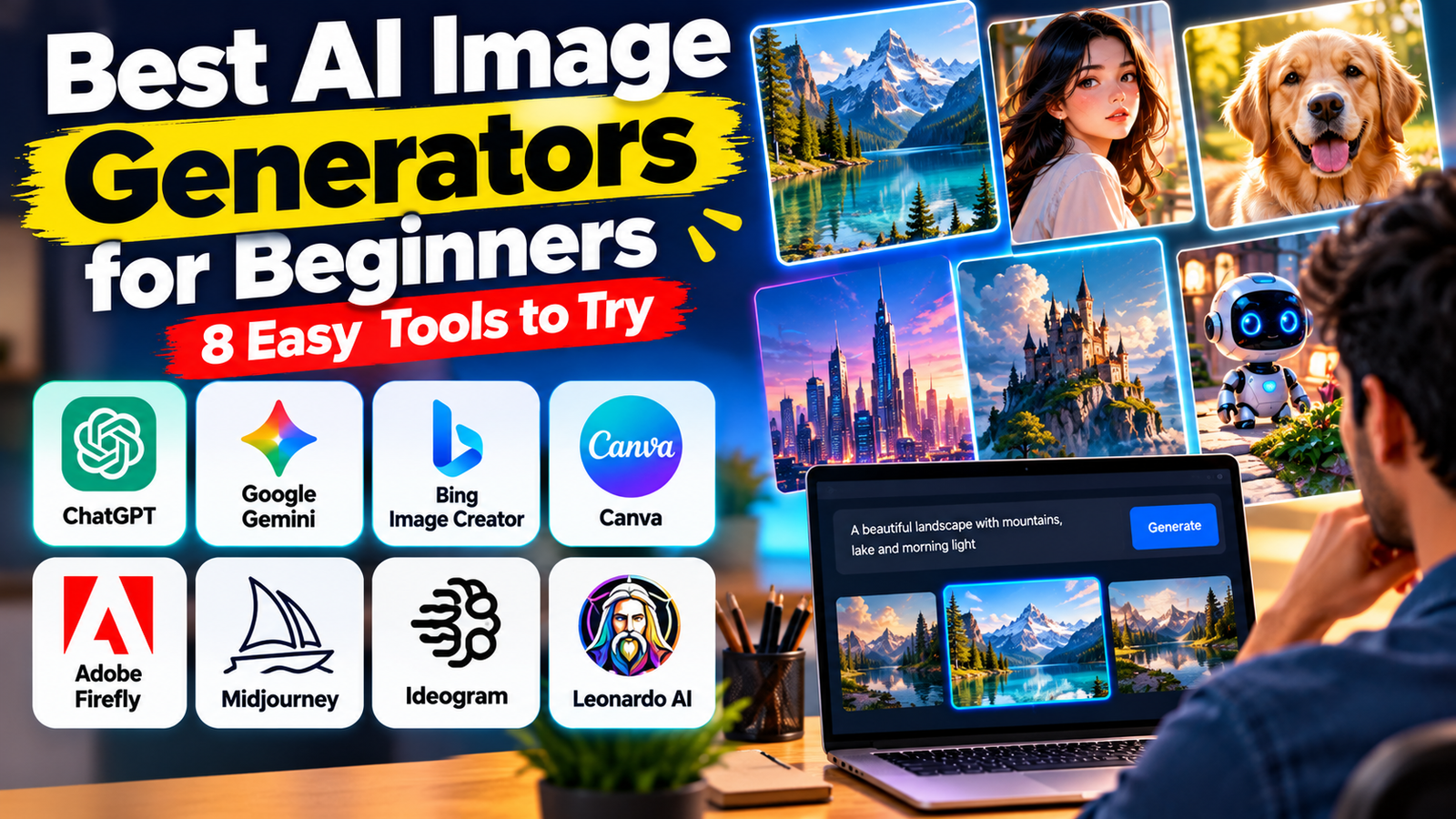
Creating attractive images no longer requires professional photography equipment, expensive design software or years of artistic experience. AI image generators allow beginners to turn written descriptions into digital artwork, realistic scenes, illustrations and creative designs.
These tools can be useful for bloggers, students, content creators, small business owners and anyone who wants to explore visual creativity. You can describe an idea in everyday language, choose a preferred style and let an AI tool generate an image based on your instructions.
However, not every image generator is designed for the same purpose. Some are easy to use for everyday image creation, while others offer more control over artistic styles, typography or professional design workflows.
In this guide, we explore eight AI image generators for beginners, explain what each tool can do and share practical tips for getting better results.
What Is an AI Image Generator?
An AI image generator is a tool that uses artificial intelligence to create images from text prompts or, in some cases, existing images.
For example, you could enter a prompt such as:
“Create a realistic photograph of a small coffee shop on a rainy street, warm lighting, reflections on the pavement, cinematic photography, high detail.”
The tool interprets your description and generates an image that attempts to match your instructions.
Depending on the platform, you may also be able to edit an existing image, change the background, adjust the composition or generate different versions.
AI image generators can help with blog illustrations, website banners, social media posts, product concepts, presentations, digital artwork and video thumbnails. However, results vary depending on the tool, prompt and complexity of the requested image.
1. ChatGPT Images: Best for Conversational Image Creation
ChatGPT is a convenient starting point for people who want to create images using ordinary conversational instructions. Instead of learning complicated design controls, you can describe what you want and refine the result through follow-up requests.
What can you create?
You can use ChatGPT to generate illustrations, realistic scenes, creative concepts, blog visuals and social media artwork. Supported workflows may also allow you to edit images or use reference pictures.
For example, a blogger could request a featured image about smartphone technology and then ask for a wider composition, different lighting or a more professional appearance.
This conversational approach makes experimentation easier because you can explain what needs to change without rewriting the entire prompt.
Best for: Beginners, bloggers, everyday image creation and conversational editing.
Limitations: Image-generation availability and usage limits depend on the account and plan. Review the generated image carefully before publishing.
Try it: https://chatgpt.com/
2. Google Gemini: Best for Image Generation and Editing
Google Gemini is another useful option for beginners who want to create images and refine them through conversation. Google’s Gemini Apps support image-generation experiences, although specific capabilities can vary by account, region and plan.
Why should beginners try Gemini?
You can describe an image, review the result and request adjustments. Depending on the available features, you may also be able to upload images as references or ask for changes to particular elements.
For example, a content creator could request a realistic image of a person working on a laptop and then ask for a brighter background or a different setting.
Gemini’s conversational interface can make the creative process approachable for people without graphic-design experience.
Best for: Google users, creative experimentation and conversational image editing.
Limitations: Features and usage limits vary. Check the current terms before using generated content commercially.
Try it: https://gemini.google.com/
3. Microsoft Designer and Bing Image Creator: Best for Simple Visual Ideas
Microsoft offers image-generation experiences through products such as Bing Image Creator and Microsoft Designer. These tools can help users turn text descriptions into visual concepts without requiring advanced design skills.
What can you make?
You can experiment with illustrations, creative scenes, concept images and visuals for personal projects.
A beginner might request an image of a futuristic city, a nature illustration or a professional-looking background for a presentation. You can refine the description to change the colours, subject or atmosphere.
Microsoft Designer is also worth exploring when you want to turn an image into a broader design, such as a promotional graphic or social media post.
Best for: Beginners looking for straightforward image creation and users of Microsoft services.
Limitations: Access conditions, generation limits and editing features may change. Some capabilities may require an eligible subscription.
Try Bing Image Creator: https://www.bing.com/images/create
Try Microsoft Designer: https://designer.microsoft.com/
4. Canva AI: Best for Blog Graphics and Social Media
Canva combines AI-assisted image creation with design tools for producing finished visual content. Its AI features can help beginners create artwork and incorporate it into banners, presentations and social media graphics.
Why is Canva useful?
Suppose you want to publish a technology article on your website. You can generate a relevant image and then use Canva’s design editor to create a banner, add a headline or prepare a social media graphic.
The advantage is that you can work on both the image and the surrounding layout in one place.
Canva can also help with posters, promotional graphics and other visual materials. You may not need a separate editing application for every task.
Best for: Bloggers, social media creators, students and people who want complete designs.
Limitations: AI features may have usage limits, and some tools require a paid plan. Check the applicable licensing conditions before using content commercially.
Try it: https://www.canva.com/
5. Adobe Firefly: Best for Creative Design Workflows
Adobe Firefly is designed for AI-assisted image creation and creative workflows. It is worth exploring if you want to experiment with visual styles or work with other Adobe creative applications.
What makes Firefly useful?
A beginner can describe a subject, explore different visual directions and adjust the prompt to get a more suitable result.
For example, a small business owner might generate a concept image for a product campaign. A blogger could create an illustration that matches an article’s subject and visual style.
Firefly can also fit into workflows involving Adobe products such as Photoshop and Adobe Express, depending on the available features.
Best for: Creative experimentation, design projects and Adobe users.
Limitations: Access to features and generative credits depends on the plan and product. Review the applicable terms, especially before using generated assets commercially.
Try it: https://firefly.adobe.com/
6. Midjourney: Best for Artistic Images
Midjourney is an AI image-generation platform known for visually distinctive artwork. It is worth considering if you want to create fantasy scenes, cinematic environments, concept art or stylized illustrations.
Compared with simpler image-generation workflows, Midjourney may require more experimentation to understand how prompts and available settings affect the final result.
What can you create?
You can explore imaginary landscapes, science-fiction environments, fantasy characters and editorial-style artwork.
For example, a creative writer might generate a concept image of a fictional city at sunset, with atmospheric lighting and a specific artistic style.
You can refine prompts to adjust composition, mood and lighting.
Best for: Digital artists, creative writers and people who want artistic imagery.
Limitations: It may take practice to achieve a specific result, and access generally requires a paid subscription. Check the current plans before signing up.
Try it: https://www.midjourney.com/
7. Ideogram: Best for Images That Include Text
Creating images with readable text can be challenging for AI image generators. Ideogram is worth exploring when you want to generate visual concepts containing headlines, short phrases or typography.
This can be useful for posters, promotional concepts, social media graphics and designs where text is part of the visual.
How can beginners use Ideogram?
You might request a poster concept with a short headline, a product promotion or a graphic with a clearly specified visual hierarchy.
For example, a technology blogger could experiment with a thumbnail containing a brief title and a simple background.
However, text rendering is not guaranteed to be perfect. Always inspect spelling, punctuation, spacing and letter shapes. For important publication graphics, you may prefer to generate the background first and add the final text manually in a design editor.
Best for: Typography-focused artwork, posters, thumbnails and promotional graphics.
Limitations: Results can still contain lettering errors, and access conditions and usage allowances may change.
Try it: https://ideogram.ai/
8. Leonardo AI: Best for Creative Projects and Game Art
Leonardo AI is another platform worth exploring if you want to create detailed digital artwork, character concepts, environments and stylized visuals.
Its image-generation and editing features can support creative experimentation, making it useful for people interested in illustration, gaming concepts and visual storytelling.
What can you create with Leonardo AI?
You could experiment with fantasy landscapes, fictional characters, game environments, product concepts or illustrations for online content.
For example, a gaming content creator could describe a futuristic battlefield with dramatic lighting and a wide cinematic composition. The tool can generate a visual starting point that the creator can refine.
Leonardo AI may offer more creative controls than some basic image-generation tools, so beginners should start with simple prompts before experimenting with advanced settings.
Best for: Digital artwork, game concepts, character designs and creative visual projects.
Limitations: Available models, generation limits and commercial-use terms depend on the current service and plan. Review the licensing conditions before using images in commercial projects.
Try it: https://leonardo.ai/
Quick Comparison: Which AI Image Generator Should You Choose?
| AI tool | Best suited for |
|---|---|
| ChatGPT Images | General image creation and conversational editing |
| Google Gemini | Image generation and iterative edits |
| Microsoft Designer / Bing Image Creator | Simple visual concepts |
| Canva AI | Blog graphics and social media designs |
| Adobe Firefly | Creative editing workflows |
| Midjourney | Artistic and stylized images |
| Ideogram | Typography-focused graphics |
| Leonardo AI | Digital artwork and game concepts |
There is no single tool that is best for every task. Your ideal choice depends on the type of images you want, your budget, editing needs and preferred workflow.
How to Write Better Prompts for AI Image Generators
A clear prompt can help you get more useful results. You do not need technical knowledge, but you should describe your idea precisely.
Include these five elements:
- Subject: Explain what the image should show.
- Setting: Describe the location or background.
- Style: Specify whether you want a realistic photograph, illustration, painting or 3D render.
- Lighting and colours: Describe the mood, brightness and colour palette.
- Composition: Explain where the subject should appear and whether you need a square, portrait or landscape image.
For example:
“Create a realistic photograph of a modern laptop on a clean desk in a home office, natural window light, neutral colours, professional technology photography, wide landscape composition, no visible brand logos.”
Review the first result and request targeted changes. You might ask for softer lighting, a simpler background or more space around the main subject.
For images containing important text, verify every word. Avoid presenting imaginary scenes as documentary evidence of real events.
What to Check Before Publishing AI Images
Before using a generated image on your website or social media, consider these important points.
Accuracy: Check faces, hands, objects, logos and text for visual mistakes.
Copyright and permissions: Avoid attempting to copy a specific copyrighted image or misuse another person’s identity. Review the tool’s current terms and applicable laws.
Commercial use: Do not assume every free plan permits unrestricted commercial use. Check the relevant licence and subscription conditions.
Privacy: Be careful when uploading personal photographs or confidential business materials.
Website performance: Resize and compress images appropriately. Use descriptive file names and meaningful alt text, and make sure the image fits the article.
AI-generated images should support your content rather than mislead readers. If an image depicts an imaginary scene, do not present it as evidence of a real event.
Final Verdict
The best AI image generators for beginners depend on what you want to create.
ChatGPT Images and Google Gemini are convenient starting points for people who prefer conversational instructions. Microsoft Designer and Canva can help you produce finished visual designs, while Adobe Firefly supports creative workflows. Midjourney is worth exploring for artistic imagery, Ideogram for typography-focused concepts and Leonardo AI for digital artwork and game designs.
Start with one tool, experiment with a few prompts and review the results before paying for a subscription. As your skills improve, you can try additional platforms to discover which one fits your workflow.
The most useful AI image generator is not necessarily the one with the most features. It is the one that helps you create appropriate, high-quality visuals efficiently while respecting privacy, accuracy and usage rights.
Read More : Best ChatGPT Alternatives for Everyday Tasks: 7 AI Tools Worth Trying
1 thought on “Best AI Image Generators for Beginners: 8 Easy Tools to Try”
Comments are closed.